
Child Panel Setup: Domain, Prices and Payments in Week One
Child panel setup step by step: connect your domain and SSL, set markups by category, add payments and policies, and test every category before launch.
Child panel setup takes about a week of focused work, and most of it is configuration and testing rather than anything technical. You register a domain you control, point its nameservers (or records) at your provider, wait for DNS and SSL to settle, then import the catalog, set markups category by category, rewrite descriptions without changing the terms, connect payments, publish a refund policy and place a test order in every category before you take money.
This guide starts where our decision article on how to create an SMM panel ends. You have already picked a child panel over a self-hosted script or rented software, and now you need a checklist that works on any provider's child panel, not just one. It covers the domain and DNS concepts in plain terms (without inventing values that only your provider can give you), SSL, pricing logic, descriptions, payments, policies, support and a pre-launch test protocol.
Facts in this guide were checked in November 2026.
What does child panel setup actually involve?
Child panel setup is the work of turning a white-label store that your provider hosts into a business that runs on your domain, at your prices, with your rules. The provider supplies the software, the hosting and the catalog. Everything a customer judges you on (domain, prices, wording, payments, refunds, ticket speed) is yours to configure.
If you rush it, your first customers become the test phase, and you pay for it in refunds and bad reviews. Spread over seven days, each day's work is short.
| Day | Task | Done when |
|---|---|---|
| 1 | Register the domain, secure the registrar account | Domain is in your name, 2FA and auto-renew on |
| 2 | Order the child panel, change nameservers or records | Lookup tools return the provider's nameservers |
| 3 | Confirm SSL, set branding, create the admin and staff logins | Site loads on https with no warnings |
| 4 | Import the catalog, hide what you will not support, set markups | Every visible service has a price you chose on purpose |
| 5 | Rewrite descriptions, publish terms, refund and privacy pages | Each description matches the provider's start, speed, refill and cancel terms |
| 6 | Connect payments, fund your provider balance, test top-ups | A small real top-up lands in a test account |
| 7 | Test order in every category, then a soft launch | Each category has a recorded start and completion time |
The order matters more than the exact days: DNS before SSL, prices before descriptions, working payments before test orders.
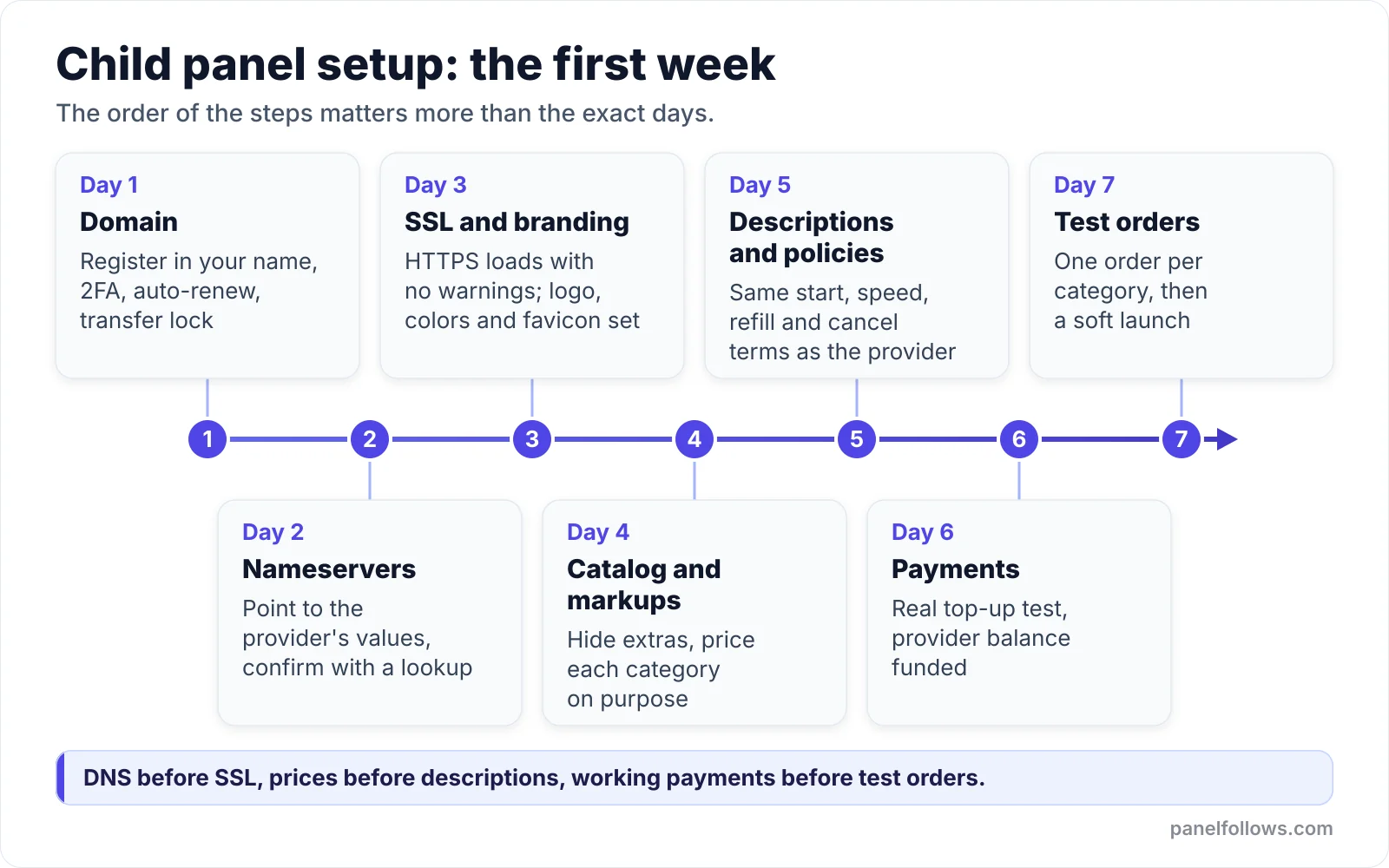
The order of the steps matters more than the exact days.
Child panel vs main panel: which one are you setting up?
A child panel is a hosted copy of panel software connected to one parent provider. A main panel is one you run yourself, and it can pull services from many providers through their APIs. This guide covers the child panel setup, where the provider handles hosting, updates and the connection to its catalog.
| Question | Child panel | Main panel (own script or rented software) |
|---|---|---|
| Who hosts it | The parent provider | You, or the software vendor |
| Where services come from | Usually only the parent provider's catalog | Any provider you connect by API |
| Domain connection | Typically nameservers pointed at the provider | Whatever your host requires |
| Main risk | Dependence on one provider's quality and uptime | More moving parts, more things to monitor |
| When it fits | Testing demand, small resale, first panel | Proven demand, need for several suppliers per service |
If you are still deciding between them, the decision article covers that in depth. Our guide on how to find an SMM provider explains how to vet the parent before you tie your store to it.
Choosing a domain before you order the panel
The domain is the one part of a child panel you should own outright, because it is the only asset that survives if you ever move to a different provider. Register it yourself, in your name, at a registrar you can log into. Never let the panel provider register it for you.
Three decisions here are hard to undo later.
Which registrar. Pick one that lets you change nameservers freely. Cloudflare's own nameserver documentation says a domain bought through Cloudflare Registrar already uses Cloudflare nameservers, and switching to a different DNS provider means transferring the domain out. Most child panels ask you to point nameservers at the provider, so a registrar with that restriction is the wrong place to buy a panel domain.
When you can move it. ICANN's transfer policy limits when you can move a domain to another registrar. As DreamHost's summary of the ICANN Transfer Policy explains, registrars can block transfers for 60 days after a new registration, and changing the registrant's contact details can trigger another 60-day lock (many registrars let you opt out of that second one). ICANN has approved revisions to these rules, including shorter lock periods, so check your registrar's current policy. Either way, a domain bought at the wrong registrar can be stuck there for weeks, so choose carefully on day one.
The name itself. Short, brandable and free of platform trademarks is the safe pattern. A domain built around "instagram" or "tiktok" invites trademark complaints and looks like an impersonation attempt to a cautious buyer.
Once the domain is registered, do three things in the registrar account before touching DNS:
- Turn on two-factor authentication for the registrar login.
- Enable auto-renew and add a payment method that will still work in a year.
- Turn on the registrar lock (transfer lock) so nobody can move the domain without your action.
If your panel goes dark because the domain expired or someone took over the registrar login, you lose your customers' trust overnight.
How to connect a domain to a child panel
To connect a domain to a child panel, you change its nameservers at your registrar to the ones your provider gives you. Some providers ask you to add specific DNS records instead. Either way, the values come from the provider's child panel order page or welcome message. Never copy nameserver addresses from a tutorial or video, because they differ by provider and can change.
According to Cloudflare's explainer on NS records, the nameserver record tells the internet which DNS server is authoritative for a domain, meaning which server holds its actual records. When you point nameservers at your provider, you hand them control of every DNS record on that domain.
People often miss one side effect: email. If you planned to use an address like support@ on the panel domain, the mail records (MX) now live in the provider's DNS, not at your registrar. Ask the provider whether you can add your own records. If you can't, run support email on a separate domain.
The procedure itself:
- Order the child panel and enter the exact domain you registered (with or without "www", as the provider specifies).
- Copy the nameservers (or the records) the provider shows after ordering.
- In your registrar's dashboard, open the domain's DNS or nameserver settings and choose custom nameservers.
- Replace every existing nameserver with the provider's list. Do not mix old and new nameservers.
- Save, then check from a terminal with
dig NS yourdomain.com +short(macOS, Linux) ornslookup -type=ns yourdomain.com(Windows). - Wait until the lookup returns only the provider's nameservers before you troubleshoot anything else.
How long you wait depends on caching. DNS resolvers keep each answer for as long as the record's TTL allows. As Who.is explains in its TTL guide, "propagation" is really old cached copies expiring, not your change traveling outward. Cloudflare's NS explainer says updated NS records can take several hours to replicate. The nameserver records held at the domain's registry are often cached for up to 48 hours, so some networks may see the old setup for a day or two.
If the provider asks for records instead of nameservers (usually an A record for the root domain and sometimes a CNAME for "www"), lower the TTL on the old records a day in advance if you can, then replace their values. Leave unrelated records alone. Delete any old AAAA (IPv6) record that points at a previous host, because some visitors will keep landing there.
SSL on a child panel: what has to be true before https works
The provider almost always issues SSL for a child panel automatically, but only after your domain points at its servers. If the site shows a certificate warning, the cause is nearly always DNS that has not settled, not a broken certificate.
The reason is how free automated certificates are issued. Let's Encrypt's "How It Works" page describes the process: software on the web server must first prove to the certificate authority that it controls the domain, and only then can it request a certificate. If part of the internet still sees your domain on an old host, that proof can fail, and the provider's system will retry later.
If https still isn't working 24 to 48 hours after the nameserver change, check these:
- Confirm the nameserver lookup returns only the provider's nameservers.
- Open the site on mobile data to rule out your own cached DNS.
- If you ever set a CAA record on the domain, make sure it does not forbid the certificate authority your provider uses.
- After the certificate appears, load every page you customized and look for "not secure" warnings caused by images or logos linked over plain http.
On a child panel, renewing the certificate is the provider's job. Your job is to notice if a warning ever appears, so keep a simple uptime monitor on the domain.
Resell the same services at your own price
Send orders from your own site through the reseller API and set your own margin. You can also run a child panel under your own brand.
Importing the catalog: what to keep, hide and rename
Importing the catalog means deciding which of the parent's services your customers will see, under which names and in which categories. The right default is to show less than the provider offers, because you have to price, describe, test and support every service you show.
A practical first pass:
- Import everything hidden if your panel allows it, then enable only the platforms your audience asks about.
- Within each platform, keep at most two or three options per service type: one budget option, one with refill, and one premium or targeted option if it exists.
- Group services into categories your buyers recognize (for example "TikTok Views" and "TikTok Followers"), not by provider codes.
- Keep a private spreadsheet that maps your service name to the provider's service ID, rate, refill period and cancel status.
When a customer reports a problem with "TikTok Followers Refill 30D", that spreadsheet tells you which upstream service it is and what terms it carries.
Instagram, TikTok and YouTube terms prohibit buying engagement, and that does not change because your logo is on the store. Don't hide this from your customers. Before you decide which categories to offer and how to describe them, read our guide on whether an SMM panel is legal under the FTC fake followers rule.
How to set markups by category instead of one flat percentage
Set markups per category, because one flat percentage overprices the services buyers compare most and underprices the ones that cost you the most support time. Base each category's price on three things: the provider's rate, how much handling the service creates and how price-sensitive its buyers are.
| Category type | Typical buyer behavior | Support load | Markup logic |
|---|---|---|---|
| Views, impressions, reach | Price-shops, orders often and in volume | Low, deliveries are usually quick | Higher percentage is possible because the absolute amounts are tiny, but stay near what comparable panels charge |
| Likes and reactions | Repeat buyers, moderate price sensitivity | Low to moderate | Middle of your range |
| Followers and subscribers with refill | Larger orders, watch counts closely | High, drops lead to refill tickets | Price in the refill handling, not just the rate |
| Followers without refill | Bargain hunters | High complaints if drops are not explained | Lower price, very clear "no refill" wording |
| Custom comments, targeted or niche services | Few buyers, specific needs | Moderate, wrong text or links cause tickets | Higher margin, fewer options |
| Live stream viewers, time-based services | Buy before an event, time-critical | High if anything starts late | Margin that covers a refund or two |
Here is an example with made-up numbers. Say your provider rate is $0.40 per 1,000 for a views service and $2.00 per 1,000 for a followers service with refill. A 100% markup on views gives a price of $0.80, and few buyers will notice the difference. The same 100% on followers gives $4.00, which may push you far above competing stores. A 40% markup gives $2.80 and still leaves 80 cents per thousand to cover the refill tickets that service will produce. Our article on wholesale SMM provider pricing goes deeper into margin math.
Two rules keep pricing healthy after launch:
- Watch upstream rate changes. If your panel can sync prices to the provider's rate plus your markup, check that it applies your per-category rules. If prices are fixed, review them weekly, because a provider rate increase can turn a service into a loss.
- Set a minimum top-up. Payment gateways usually charge a fee with a fixed part, so a tiny top-up can cost you more in fees than it earns.
Rewriting service descriptions without changing the terms
Rewrite every service description in your own words, but keep the facts identical to the provider's terms: start time, speed, minimum and maximum, refill period and cancel option. Your customers will hold you to what your page says, and the provider will hold you to what theirs says. Any gap between the two becomes your cost.
| Field | Keep exactly as the provider states | What you may change |
|---|---|---|
| Start time | Yes | Format, for example "0 to 1 hour" instead of "0-1H" |
| Speed per day | Yes | Format only |
| Minimum and maximum | Yes (or a narrower range) | You may raise the minimum to avoid tiny orders |
| Refill period | Yes, never longer | Explain what refill means in plain words |
| Cancel option | Yes | Explain when cancel is possible |
| Quality notes | Do not upgrade | Remove hype, add what the buyer should expect |
Remove words like "safe", "no ban", "real active users", "non-drop" and "guaranteed viral". If a service has a refill period, state the refill period instead: refill exists because drops happen. These claims cause refund disputes, and on platforms that prohibit bought engagement they aren't true.
A good description answers the questions a buyer would otherwise ask in a ticket. What is delivered? How should the link look? When does it start, and how fast does it run? Are drops refilled, and for how long? Can it be canceled? Add one sentence on what the service won't do, for example that a higher follower count does not bring reach on its own. Our explainer on why followers drop and how refill guarantees work helps when you write the refill line.
Payment methods and your two balances
A child panel runs on two balances. Your customers top up their balance on your panel, and every order they place is paid from your own balance at the provider. If your provider balance runs out, orders stall or fail even though your customers have paid you, so payments are as much about cash flow as about gateways.
Your customers' side. Which gateways you can connect depends on your panel software, and whether a gateway will accept you depends on the gateway. Many card processors treat social media services as high risk, and card payments carry chargeback risk that can wipe out a month of margin. Crypto gateways avoid chargebacks but add friction for buyers who aren't used to them. Our SMM panel payment gateway guide compares the options. The chargeback prevention playbook covers the fraud patterns that tend to appear in the first month.
Your provider side. Fund the provider balance before launch, and keep enough in it to cover several days of expected orders. If your parent is Panel Follows, you fund that balance with cryptocurrency (USDT and other coins via crypto gateways) or by international bank transfer. Bank transfers take longer to land, so top up before you need to.
Before launch, test the whole chain with real money:
- Create a customer account on your own panel with a separate email.
- Make the smallest allowed top-up through each gateway you enabled.
- Confirm the amount lands in the customer balance and matches the fee you expected.
- Place a small order and confirm it reduces your provider balance by the provider rate.
- Write down the gateway fee, the time to credit and any manual step involved.
If your panel offers a low-balance alert for the provider balance, turn it on.
Refund policy, terms and support by ticket
Before your child panel takes its first payment, it needs a public refund policy, terms of service and a privacy policy. You also need a ticket routine that someone actually follows. These pages are what you point to in every dispute, and a payment gateway may ask to see them.
Your refund policy should answer, in plain language:
- Whether refunds go to the panel balance or back to the original payment method (most panels refund to balance, and you should say so).
- What happens to canceled or partially delivered orders, and how remaining amounts are credited.
- That orders placed on private accounts, wrong links or changed usernames may complete without delivery and are not refundable.
- That drops after the refill period, or on services marked "no refill", are not refunded.
- How long a customer has to raise a problem, and how (by ticket, with the order ID).
Keep the policy consistent with your descriptions. Where the two conflict, customers and gateways will side with the description.
Support by ticket. For a small panel, tickets scale better than chat because every case has an order ID and a written history. Set up canned replies for the most common cases: order not started, partial delivery, drop and refill request, wrong link, and refund to balance. When a case needs the provider, open a ticket on their side using the provider's order ID, not your customer's. Your admin panel normally shows it next to your own ID. Panel Follows also handles provider-side issues by ticket from the dashboard.
Promise a response time you can keep while you sleep. "Within 24 hours," honored every day, beats "instant support" that goes quiet at night.
The pre-launch test: one order in every category
The pre-launch test means placing at least one real order at the minimum quantity in every category you made visible, on accounts you control, and recording how each order behaved. It is the only way to write accurate descriptions and answer tickets with confidence.
Delivery times vary far more by category than most new panel owners expect. A views service may finish quickly, while followers, likes or shares on the same platform can take hours or several days, depending on the start time and speed the provider states for that service. Every service on the provider's side lists its own start time and speed. Compare your test results with those stated terms, not with a general rule of thumb, and don't judge a test order after 30 minutes.
The protocol:
- Create test accounts you control on each platform you sell, set to public, with a normal-looking profile. Use accounts you can afford to lose, because platform terms prohibit bought engagement and any account can be restricted.
- For each visible category, order the minimum quantity of one service through your own panel as a customer.
- Record the start count, order time, start time and completion time in your spreadsheet.
- Recheck counts after 7 days and after the refill period if the service has one.
- For one refill service, request a refill after a drop and note how the request behaves (on Panel Follows, you can request a refill once every 24 hours per order during the stated refill period).
- For one cancellable service, place an order and cancel it before delivery starts, then confirm the balance credit.
- Test the routine flows too: sign-up email, password reset and the mobile layout.
If a category fails the test (it never starts, drops heavily without refill, or runs far slower than stated), hide it and open a ticket with the provider. Launching without that category beats launching with it and handing out refunds.
Once every visible category passes, do a soft launch with a handful of buyers you know. When you're ready to find customers beyond that circle, our guide on getting the first 100 buyers for an SMM panel picks up from here. If you are still choosing a parent provider, the Panel Follows child panel is one option among several. Everything in this checklist applies whichever you pick.
Open your account and order in minutes
Signing up is free and takes two steps. Top up with card, bank transfer or crypto, place your order and track delivery from the dashboard.
Frequently asked questions
How do I set up a child panel?
Register a domain in your own name and order the child panel. Then point the domain's nameservers (or the records the provider specifies) to the values the provider gives you. Once DNS and SSL settle, import the catalog and set markups per category. Rewrite descriptions without changing the terms, connect payments, publish a refund policy and test every visible category before launch.
What nameservers should I use for a child panel?
Use exactly the nameservers your own provider shows on the child panel order page or in its welcome message. Values differ between providers and can change, so never copy them from a video, a forum or another panel's tutorial. Replace all existing nameservers with the provider's list rather than mixing old and new, then confirm with a lookup tool.
How long does it take to connect a domain to a child panel?
The change saves at your registrar right away, but it can take a little while to reach the registry, and resolvers around the internet keep their cached answers until the TTL runs out. Updated nameservers often show up within a few hours, but some networks can take up to 48 hours. SSL is usually issued automatically once the domain resolves to the provider, so allow a day or two before deciding something is broken.
Why does my child panel show "not secure"?
Usually the domain doesn't yet point to the provider everywhere, so the automatic certificate couldn't be issued. Check that a nameserver lookup returns only the provider's nameservers, then test from mobile data. Also look for an old IPv6 record or a CAA record that blocks the provider's certificate authority. If the certificate exists but a page still shows a warning, a logo or image is probably loaded over plain http.
What is the difference between a child panel and a main panel?
A child panel is hosted by a parent provider and usually sells only that provider's catalog, so setup is mostly configuration. A main panel is software you run or rent yourself, and it can connect to many providers through their APIs. Child panels are simpler to start and maintain, which makes them a common first step.
Can I use my own payment methods on a child panel?
Usually yes, within what the panel software supports and what the gateway will approve. Many card processors classify social media services as high risk, and cards expose you to chargebacks. Crypto gateways avoid chargebacks but add friction for some buyers. Remember the second balance: your customers pay you, but their orders draw on your provider balance, which you have to keep funded separately.
How much markup should I put on a child panel?
There's no single right percentage. Price each category from the provider rate, the support load and how much buyers compare prices. Cheap view services can carry a high percentage because the absolute amounts are small. Follower services with refill need room for drop tickets but can't drift far above competing stores. Review prices whenever the provider changes its rates.
Can I move my child panel to another provider later?
You can move the domain, because you registered it yourself. Customer accounts, balances and order history, however, live in the provider's software and rarely transfer. Moving usually means opening a new panel, pointing the domain at it and crediting customers manually. Keep your own records of balances and service mappings so a migration stays possible.
Sources and further reading
- Cloudflare: DNS NS record: what a nameserver record does and why updates can take several hours.
- Cloudflare DNS docs: Nameservers: includes the note that Cloudflare Registrar domains must be transferred out to use another DNS provider.
- Let's Encrypt: How It Works: the domain-control check that automated SSL depends on.
- DreamHost: ICANN Transfer Policy: a plain-language summary of the 60-day transfer locks.
- Who.is: DNS TTL and propagation: why DNS changes show up at different times on different networks.